


All Restore - Photo & Video
4.75.00 Reviews
App Specs
- Version
- 1.2.0
- Updated On
- License
- Free
- Downloads
- 100,000+
- Developer
- Simple and practical tools
- Categories
- Business
- Platform
- Android
Screenshots
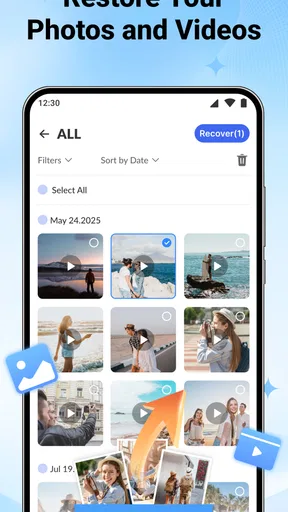
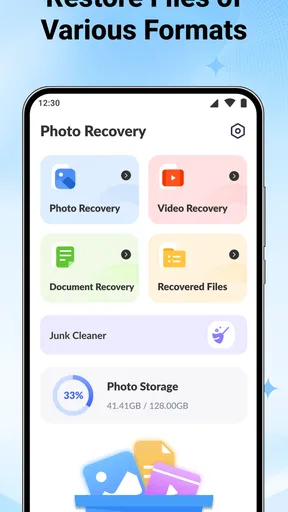
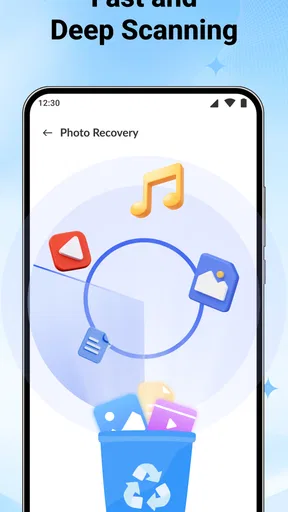
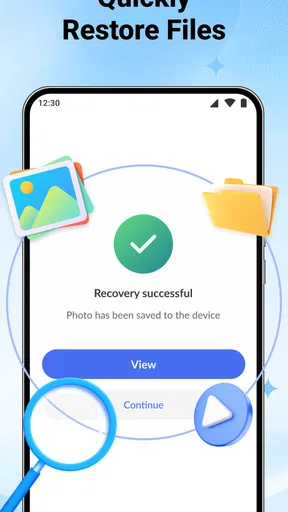
 Analysis by AppCompare
When I’m deciding whether to use a photo-recovery app, the first question is not how dramatic a before-and-after image looks. It’s what I’m being asked to trust with personal files, and whether I can make a careful choice about what to restore. All Restore - Photo & Video is a free business app from Simple and practical tools, and its focus on images and videos gives it a practical role for people trying to recover media rather than manage a full archive. My view is cautiously interested: recovery can be genuinely useful, but I would approach any tool handling private memories with patience and a habit of checking results.
Why trust matters when recovering personal media
A recovery app may be used at a stressful moment: a family photo seems to have disappeared, a video is no longer where you expect it, or a cleanup has removed something you meant to keep. In that situation, it is tempting to install the first tool that promises a quick fix. I would slow down instead. Recovery is not the same as restoring an old, physically damaged photograph, and an app’s name alone cannot tell me what it can retrieve from a particular device or where its processing takes place.
That distinction matters with All Restore. Its stated purpose is image and video recovery, so I would judge it by whether it helps me locate and save media I can no longer readily find—not by assuming it can reconstruct every damaged file or bring back anything permanently erased. Results can depend on the file, its storage history and the device. If the missing item is irreplaceable, I would avoid unnecessary phone activity before attempting recovery, because continued use may make some kinds of recovery harder.
The app has a 4.7 average from around 400 ratings, and it has passed 100K+ installs. Those figures suggest that many people have tried it, but they do not guarantee that a particular photo will return intact. I treat ratings as a useful signal for whether an app attracts interest, not as proof of a recovery outcome or a substitute for reading the choices presented on my own device.
What I would check before selecting files
When an app works with personal media, I look for the choices I can actually see: the permissions Android requests, the files I select, and any account or settings controls presented during use. I do not grant broad access automatically just because it might be convenient. If the app offers a way to choose individual items or folders, I would start with the narrowest option that lets me complete the task, then expand access only if the workflow clearly requires it.
This is a practical safeguard, not a claim about a particular permission screen. Prompts can vary by device and operating-system version, so I would read each one rather than tap through. If a request seems unrelated to finding or saving media, I would pause and decide whether I am comfortable continuing. Likewise, I would review any sign-in prompt before entering account details and use only controls that are visibly available in the app.
Before trying a recovery scan, I would also make sure I have enough free space for anything I may save and a separate place to keep recovered copies. That could be a computer or another storage location I already trust. Recovering a file onto the same crowded device may solve the immediate problem but leave me without a dependable backup, which is a poor trade if the media matters.
Worth Reading Before You Choose

EA SPORTS FC Mobile 26 Is a Bigger Football Game, but It Takes Time

Flipboard Shows What News Apps Must Do Beyond the Feed

Switching to Android Auto Means Rethinking Your Driving Routine

Google Calendar Makes a Crowded Week Easier to Manage

Ludo King Makes the Most of the Minutes Between Plans

Baby Panda World Brings Quick Play to Modern Phones, but Its Game Library Feels Busy
Making a careful recovery attempt
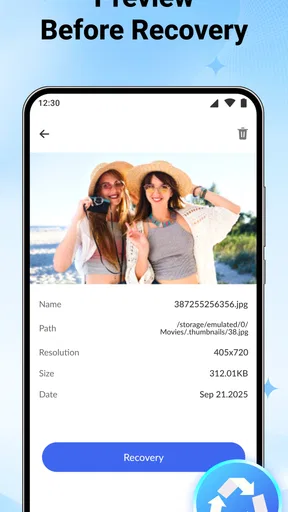
My preferred workflow is to begin with one low-stakes missing image, learn how the app presents possible results, and check the recovered copy before attempting a larger batch. I would compare the saved file with what I remember, zoom in on important details, and play a video from beginning to end. A thumbnail or preview can look convincing even when a file is incomplete, so I would not delete other copies or treat a preview as a confirmed recovery.
For a realistic everyday case, imagine I have accidentally removed a short clip from a weekend gathering and notice before I have backed up the phone. I would stop clearing storage, open the recovery tool, and check whether the clip appears among items it can offer. If it does, I would save a copy to a separate location and play it through before sharing it with family. If it does not appear, I would check the device’s own recently deleted area and any backup service I already use rather than repeatedly scanning and hoping the same result changes.
That last step is important: the phone’s built-in trash or recently deleted folder is often the simplest first stop. A cloud backup may be better when it already contains the missing item, while a desktop recovery program can make more sense for a removable memory card or a large collection that needs careful sorting. All Restore is most relevant when I want a mobile-first attempt at locating media, not when I need a guaranteed forensic recovery process or a complete photo-library management system.
Getting Started with All Restore - Photo & Video
First things first, downloading the app is a breeze. Available on both Android and iOS, All Restore - Photo & Video is just a click away from the app stores. Once installed, you’ll be met with a sleek and intuitive interface that screams simplicity, even for the tech-challenged among us.
Setting up your profile is as easy as pie. You can sign up using your email or social media accounts. The app doesn’t bombard you with unnecessary questions, which I appreciate. Right after logging in, you're ready to dive into the fun part.
Features That Make It Shine
So, what can you do with All Restore - Photo & Video? A lot, actually. The app provides a robust suite of tools designed to breathe new life into your old photos and videos.
- Photo Restoration: This feature is the heart of the app. You can simply upload an old, faded picture, and watch as the app works its magic to restore colors and clarity. It's almost like having a digital time machine!
- Video Enhancement: Got some grainy, low-quality videos? No problem. The app enhances resolution and sharpness, making those cherished moments watchable again.
- AI-Powered Tools: The app leverages AI to automatically detect and fix imperfections. From removing scratches to color correction, it has it all.
What really caught my attention was the batch processing feature. If you've got tons of photos needing a touch-up, this app lets you restore them all at once, saving you heaps of time.
Choosing what to process and what to keep
Batch processing is convenient, but I would not make it my first move with an unfamiliar recovery tool. A large selection is easy to mistake for a complete set of recoverable files, and processing everything at once makes it harder to spot a bad result or an unexpected duplicate. I would test a small group first, inspect the output, and only then decide whether handling more files together is worth the time.
There is also a useful difference between a file that is missing and a picture that is merely old, faded or scratched. For the former, I would focus on whether a copy can be located and saved. For the latter, I would think about restoration or editing, and keep an untouched original before changing anything. These tasks can overlap in everyday language, but they are not interchangeable: improving an image cannot bring back a file that the app cannot access.
If the app presents several candidates with similar names or dates, I would avoid saving over anything. I would keep recovered items in a separate folder where possible, then compare them with existing copies before cleaning up. This takes a little longer, but it reduces the chance of replacing a good file with a smaller, incomplete or altered version. For a family archive, keeping both the original and any improved copy is a safer habit than treating the processed result as the only version.
Performance and Usability
Using All Restore - Photo & Video is like having your personal digital restoration studio. The app works swiftly and efficiently. I tried restoring a few family photos, and the results were impressive. The colors were more vibrant, and the images looked crisper.
Navigating the app is straightforward, with clear instructions at every step. Even if you’re not a tech guru, you’ll find it easy to use. The developers have put a lot of thought into the user experience, ensuring that everything feels natural and intuitive.
Where a simple interface helps—and where it can fall short
A clear mobile workflow is useful when I am trying to deal with one missing item without learning desktop software. It can keep the task approachable: open the app, look for the media, and decide what to do with the result. The trade-off is that simple screens may not provide the detailed sorting and file-by-file control that a larger recovery workflow demands. If I were handling a work archive, a damaged memory card, or a large set of important recordings, I would prefer a method that makes selection and verification especially transparent.
Device conditions matter, too. A recovery attempt can take longer when there are many files to inspect, and saving copies requires storage space. I would keep the phone charged, avoid interrupting a scan if the app is still working, and not assume that a fast preview means every full-resolution file is ready. If the app does not find what I need, I would stop rather than repeatedly running the same process without changing the circumstances.
For privacy-minded use, I would consider the content before granting access or choosing a batch. A folder of ordinary screenshots is a different decision from a collection containing identity documents, private conversations or children’s photos. I would select only the media relevant to the recovery attempt, pay attention to any visible processing or account choices, and avoid importing sensitive material simply to test the app. These habits preserve user agency without assuming anything about how a particular file is handled behind the scenes.
Who is likely to find it useful
I can see this app suiting someone who wants a straightforward phone-based attempt to recover photos or videos and does not want to begin with a complicated desktop tool. It is also a reasonable option for a casual user who can check the results carefully and already understands that recovery is not guaranteed. Its Everyone age rating makes it broadly accessible, though an adult should still guide younger users when the files or account choices are personal.
I would be more cautious if the missing material is business-critical, legally important or the only copy of a treasured recording. In those cases, I would first preserve the device’s current state and consider professional help or a backup-based route rather than treating a consumer app as the sole solution. I would also skip a mobile recovery attempt if I cannot tell what files I am selecting, if I am uncomfortable with a permission request, or if I need a detailed audit trail of every operation.
All Restore is free, which lowers the barrier to trying it, and its current version is 1.2.0. It supports devices running Android 8.0 or later. I would still check that the version offered for my device is compatible and review any on-screen terms and permissions before proceeding. The developer, Simple and practical tools, gives the app a direct, utility-focused identity; my decision to use it would ultimately depend on the controls and results I see in practice.
Is It Worth the Download?
Now, let's talk about whether All Restore - Photo & Video is worth the space on your phone. In a word: absolutely. The app delivers on its promises and offers a unique service that many of us need. Whether you’re looking to restore a single snapshot or an entire album, this app has you covered.
Moreover, the app is regularly updated with new features and improvements, keeping it fresh and reliable. The developers are responsive to feedback, which is always a plus in my book.
In conclusion, All Restore - Photo & Video is a must-have for anyone looking to preserve their precious memories. It’s not just an app; it’s like having a little piece of magic in your pocket, ready to revive your cherished moments. So go ahead and give it a try—you won’t be disappointed!
My cautious recommendation
I would try All Restore when I have a specific missing photo or video, a clear reason to scan, and time to verify what comes back. I would not install it as a substitute for regular backups, nor assume a high rating means every lost file is recoverable. Before a problem happens, the most dependable step is keeping copies of important media somewhere separate from the phone; after a loss, that backup may save more effort than any recovery scan.
The app’s appeal is its focused, approachable role in a stressful task. Its usefulness depends on the file being discoverable and on my comfort with the access and choices presented while using it. I would start small, save recovered items separately, check them properly, and stop if the workflow asks me to make a choice I do not understand. With those limits in mind, it is a reasonable tool to consider—not a promise that every deleted memory can be brought back.
Pros
- Easy to navigate interface.
- Supports multiple file formats.
- Fast recovery process.
- High success rate in retrieval.
- No root required for Android.
Cons
- Limited free version features.
- Occasional in-app ads.
- May not recover all files.
- Large app size.
- Requires internet for full functionality.
FAQs for All Restore - Photo & Video
What is All Restore - Photo & Video and how does it work?
All Restore - Photo & Video is an app designed to help users recover deleted photos and videos from their devices. It scans your internal storage and SD card to locate files that can be restored. The app utilizes advanced algorithms to recover a wide range of file formats, offering a user-friendly interface to guide you through the recovery process.
Is All Restore - Photo & Video safe to use on my device?
Yes, All Restore - Photo & Video is designed with user safety in mind. The app does not require root access, which minimizes the risk to your device’s security. Moreover, it does not store or share your data with third parties, ensuring that your personal files remain private and secure throughout the recovery process.
Does All Restore - Photo & Video support recovery from cloud storage?
Currently, All Restore - Photo & Video focuses on recovering files directly from your device’s internal storage and SD card. It does not support recovery from cloud storage services. However, it is recommended to check for updates, as future versions may include additional features such as cloud recovery support.
Are there any limitations on the types or sizes of files that can be recovered?
All Restore - Photo & Video supports a broad range of photo and video file formats, including JPEG, PNG, MP4, and AVI. While there is generally no restriction on file size, the success of recovery may depend on whether new data has overwritten the deleted files. Always try to perform recovery as soon as possible for the best results.
Is All Restore - Photo & Video free, or are there in-app purchases?
All Restore - Photo & Video offers a free version with basic recovery features. However, for more advanced options and higher recovery success rates, the app provides in-app purchases. These premium features include deep scanning and priority support, allowing users to maximize their recovery capabilities.


